
Make the shop look like your brand
Updated 30 Aug 2026
Sample blue and placeholder photos do not feel like your brand. Customers decide in a glance.
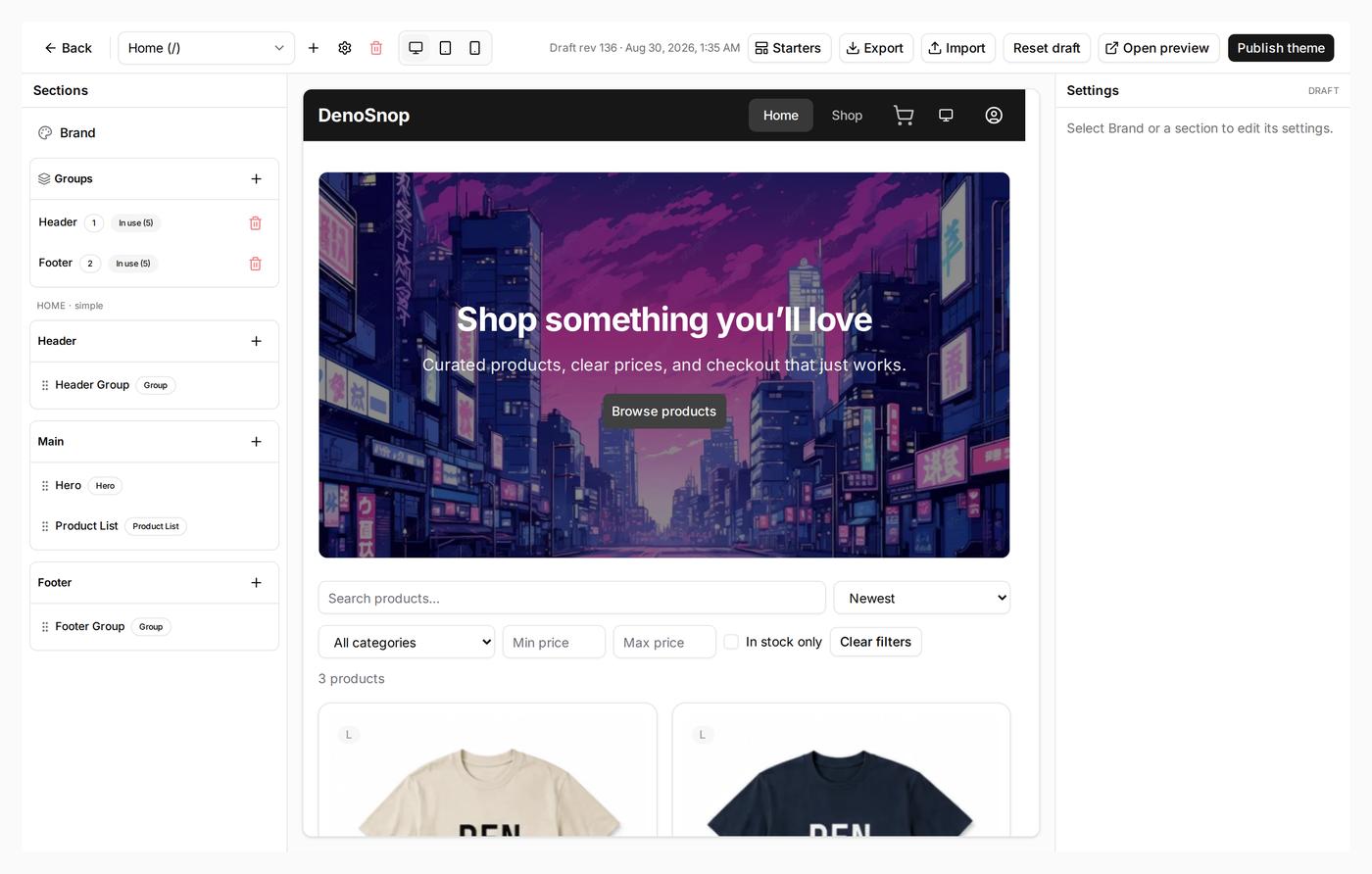
Admin → Theme is a visual editor. Change logo and colours under Brand. Edit homepage sections on path /. Drafts autosave. Shoppers only see the change after you Publish theme.
Who this is for
Anyone opening the shop to real buyers. You do not need a designer — you need your logo, colours, and a clear homepage.
What DenoShop does here
- Brand: logo, colours, header style, content width.
- Homepage and page sections you can rearrange.
- Starters (Storefront, Stall, Billboard, Catalog) applied as draft.
- Publish theme when the draft is ready.
How to set it up
- Open Theme. Admin → Theme.
- Set Brand. In the left tree open Brand. Upload your logo. Pick colours or a preset. Draft autosaves.
- Edit the homepage. Select path /. Change hero and sections. Upload images for hero blocks — external URLs will not display.
- Preview, then Publish. Preview draft is not live. Click Publish theme and confirm when you want customers to see it.
Theme does not control the storefront password. Password lives under Settings → Storefront. Publish is what makes look changes public.
What your customer sees
After publish, your logo, colours, and homepage on the shop link. Cart and checkout stay DenoShop flows — keep deep edits there light.
Related: Go from the sample shop to a live one.